What Happens When You Build an Email Signature with HubSpot?
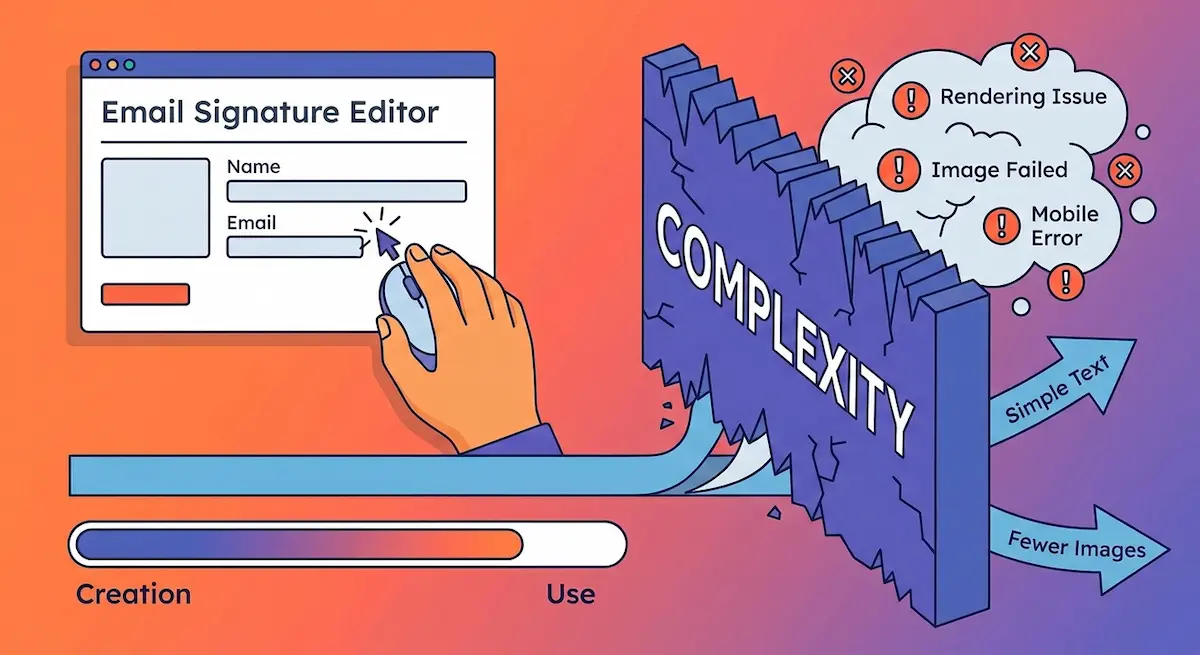
Creating a HubSpot email signature takes minutes. The generator is free, the templates look polished, and you don’t need to write a single line of HTML. It’s exactly the kind of tool that seems like a no-brainer.
The part that catches people off guard comes later—when that signature has to actually work inside Gmail, Outlook, or on a mobile device, rather than just look good in a browser preview.
If you’d rather skip that process entirely, you can create a simple email signature that works across email clients.
What HubSpot’s Email Signature Generator Gives You
The HubSpot email signature generator lets you build a signature with a logo, profile photo, social media icons, multiple clickable links, and a range of visual formatting options. You can customize colors, fonts, layout, and which icons to include.
This makes the generated signature closer to a branded email block than a simple contact signature. That distinction matters more than it might seem.
Email Signatures Have to Work Inside Email Clients
Gmail, Outlook, and Apple Mail each have their own rules for handling HTML. Some CSS properties that work in one client are ignored or interpreted differently in another. Images may load in one environment and fail silently in another. Complex formatting can collapse, shift, or disappear when a signature is used in a real email.
The more complex a signature is, the more things can go wrong. An HTML text-based signature has very little that can break. A HubSpot HTML email signature with a hosted logo, a headshot, four social icons, and multiple formatted links has many more elements that need to render correctly in every email client.
What Users Actually Run Into
The HubSpot Community documents years of issues users faced while working with the generator. A few patterns come up repeatedly.
Outlook Rendering Issues
Outlook is one of the places where a complex email signature can start behaving differently from how it looked when it was created. Users have reported clipped icons, broken color formatting, unexpected spacing, and other display issues with these elements.
These issues can be especially frustrating because the signature was created correctly, yet it displays incorrectly when you actually use it.
HubSpot Community guidance points users toward troubleshooting the HTML when this happens. That can mean checking the code, changing how elements are structured, or making other manual adjustments—steps that require at least some understanding of HTML and email formatting.
For someone who used a signature generator specifically to avoid dealing with HTML, that’s an unexpected part of the process.
Image Loading Problems
The HubSpot email signature generator doesn’t allow direct image uploads from your computer. To add a logo or headshot, you need to host the image externally—typically via Google Drive or Dropbox—and provide a link.
In early 2025, Google changed how it handles file access from Google Drive, which broke image loading for a large number of users. Logos that had been working for months stopped appearing. HubSpot acknowledged the issue and attributed it to Google’s changes, but the practical result was the same: users who had spent time building their signatures found them broken, with no straightforward fix other than finding another hosting method or rebuilding without images.
This is one of the structural problems with image-heavy signatures. They depend on external resources that can change or become unavailable.
Mobile Display Problems
Some HubSpot email signature templates display incorrectly on mobile devices. What looks clean on a desktop can appear as a long vertical column of elements on a phone, with proportions and spacing that weren’t designed for a narrow screen.
HubSpot’s own recommendation for this issue is to remove images from the template. In other words: simplify the signature to fix the rendering problem.
Browser-Dependent Copying
The way you copy the finished signature out of HubSpot’s generator affects how it appears when pasted into an email client. Different browsers copy the HTML formatting in slightly different ways, which means a signature installed correctly in Chrome may not behave the same way when copied in Firefox or Safari.
HubSpot recommends trying a different browser as a troubleshooting step—another unexpected step in what should otherwise be a straightforward process.
These issues are worth understanding in context. They’re not specific to HubSpot—they’re a pattern that can come with how free signature tools are built.
The Pattern in HubSpot’s Own Troubleshooting
What’s telling about all of these problems isn’t just that they exist—it’s how HubSpot recommends fixing them.
Remove the images. Try a different template. Switch browsers. Edit the HTML manually.
Every one of those recommendations points in the same direction: simplify. The troubleshooting path for a complex HubSpot email signature not working often involves reducing it contains.
That creates an interesting situation. Someone uses a feature-rich generator to build a signature with a logo, social icons, and formatted links. Then they run into rendering or compatibility problems. Then they spend time troubleshooting: trying different browsers, editing HTML, removing images. And the resolution is often a signature that looks close to what they could have created with six plain text fields in the first place.
The generator may save time during creation, but some users end up spending that time later on troubleshooting.
Instead of Troubleshooting, Start Simple
The HubSpot email signature generator is a capable tool. But the problems users run into with it aren’t random—they follow directly from the complexity of what it creates.
A signature with just a name, role, phone number, email address, website, and nothing else is as simple and practical as it gets. There are no hosted images that can stop loading when a third-party service changes its policies. There are no social icons that have to be rendered correctly across different email clients. There’s no complex formatting that one email client handles and another doesn’t.
Instead of troubleshooting it afterward, you can create a minimalist signature that contains the information you actually need.
It is designed to work reliably across Gmail, Outlook, and other common email clients without all those extra steps.
Conclusion
The problems with a HubSpot-generated email signature come after it’s created—when it has to work inside Outlook, display correctly on a phone, or load a logo that’s hosted on Google Drive.
None of those problems are unique to HubSpot. They’re a predictable consequence of overcomplicating a simple contact block. The more it tries to do, the more there is to go wrong—and the more time you may end up spending troubleshooting something that was supposed to be finished.