Why Use an Email Signature for Personal Email
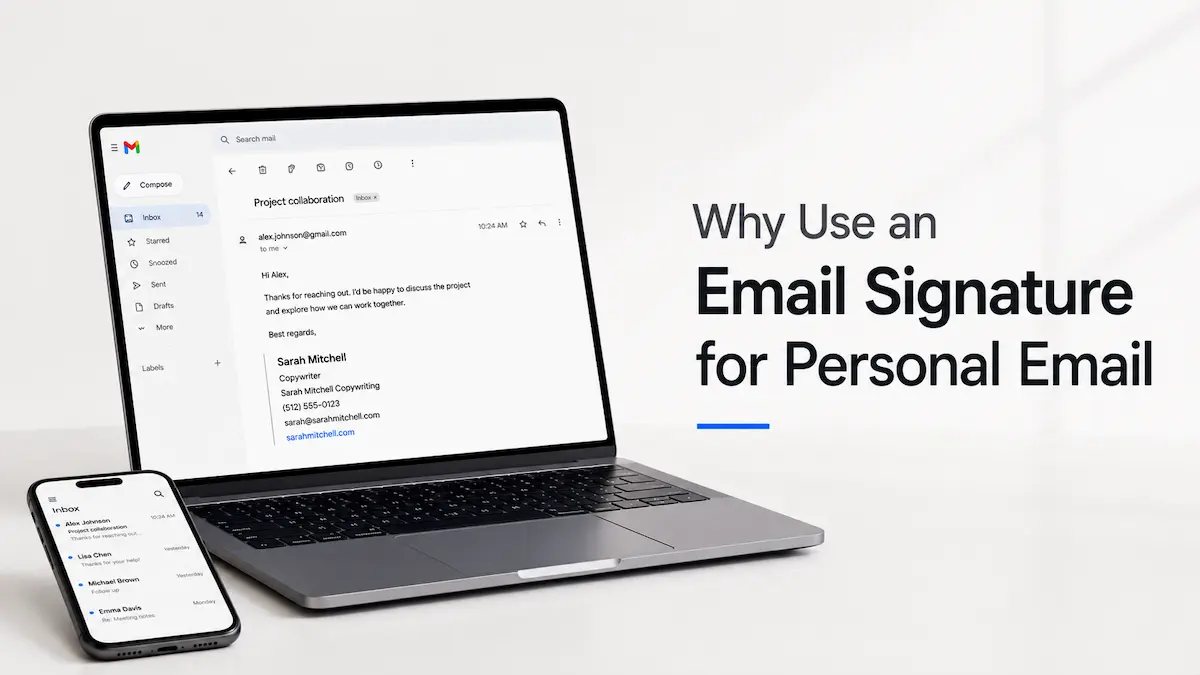
Job applications, freelance inquiries, client communication, and networking follow-ups—a significant portion of professional communication happens through Gmail, Yahoo, or iCloud instead of a work account.
That creates a simple problem: your emails still need to identify you professionally, even though they aren’t being sent from a company address.
A personal email signature solves that problem without requiring a company email address or corporate branding.
If you want to set one up now, you can create your email signature in minutes.
Do You Need a Signature on Your Personal Email?
If you rely on your personal email for professional communication, adding a signature is one of the simplest ways to present yourself more professionally. It helps recipients identify you, keeps your contact details with every message, and makes reconnecting much easier. In fact, the best personal email signatures are usually the simplest ones—clear, informative, and easy to scan.
Emails get forwarded, conversations grow into long threads, and people often reply weeks later. Instead of searching for your phone number or website, recipients can find everything they need at the bottom of every message.
What to Include in a Personal Email Signature
A personal email signature format for professional communication typically includes six elements:
1. Full Name
How you want to be identified—consistently across every email you send.
2. Professional title, occupation, or area of expertise
What you do. This can be a formal job title, a description of your work, or a field you specialize in. Include it when it adds useful context for the recipient.
3. Company, business name, location, or another professional identifier
This line adapts to your situation. It might be your employer, your own business name, your city, or another detail that places you in context for the recipient.
4. Phone Number
The number you actually answer for professional calls.
5. Email Address
Your personal address. It’s already in the header, but signatures travel with forwarded messages, printed threads, and shared correspondence, so it’s worth including it in the signature as well.
6. Website or LinkedIn
One link. Your portfolio, personal website, or LinkedIn profile—whichever is most relevant for the people you’re reaching.
What to Leave Out
A few things that consistently work against professional personal email signatures:
Inspirational quotes. They feel personal to the sender and awkward to the recipient, especially in a professional context. A message about deadlines or project budgets doesn’t need a quote about perseverance at the bottom.
Sensitive information. Home address, personal ID numbers, anything that doesn’t belong in a professional contact block.
Email Signature for Personal Email vs Work Signature
The most important difference: use your profession, area of expertise, or current role instead of emphasizing the company you work for. “Copywriter,” “Marketing Consultant,” or “UX Designer” works better than emphasizing an employer you’re not representing in that conversation.
Beyond that:
- No company logo or branding—your name and role carry the identity
- No promotional banners or CTAs—those belong on marketing emails, not professional correspondence from a personal account
- A personal website or portfolio instead of a company URL
- LinkedIn instead of a company website if your goal is to build a professional presence, not promote a business
The result is a signature that reads as professional without looking like it was pulled from a corporate email system.
Personal Email Signature Examples
These personal email signature examples follow a consistent format. Use them as personal email signature templates—swap in your own details and adjust the third line to fit your situation.
Example 1: Freelancer
Sarah Mitchell
Copywriter
Sarah Mitchell Copywriting
(512) 555-0123
sarah@sarahmitchell.com
sarahmitchell.com
Why it works: Using her own business name in the third line makes the freelance context clear without the word “freelance.” The website doubles as a portfolio link—recipients know exactly where to find her work before they reply.
Example 2: Job Seeker
James Wilson
Marketing Professional
Chicago
(312) 555-4567
james.wilson@gmail.com
linkedin.com/in/jameswilson
Why it works: “Marketing Professional” describes what James does without implying a current employer. Chicago gives geographic context without requiring explanation. LinkedIn is the right link here—it shows experience and background in a way a personal website might not.
Example 3: Independent Consultant
Elena Rodriguez
Strategy Consultant
Austin, TX
(617) 555-8823
elena@elenarod.com
elenarod.com
Why it works: Strategy Consultant is specific enough to be meaningful but broad enough to cover different types of engagements. Location matters for consultants—clients often want to know if someone is local or remote. Her own domain as both email and website reinforces that this is an established independent practice.
Example 4: Small Business Owner
Amanda Chen
Owner
Chen Design Studio
(718) 555-8901
amanda.chen@gmail.com
chendesign.com
Why it works: The business name in the third line does more work than “Owner” alone—it tells recipients what kind of business they’re dealing with before they even click the website. Using a personal Gmail while referencing the studio name is common for small business owners who haven’t set up a custom domain email yet.
Example 5: Professional with LinkedIn
Jennifer Lee
Marketing Professional
New York
(213) 555-2341
jennifer.lee@gmail.com
linkedin.com/in/jenniferlee
Why it works: New York works well as an identifier when location is professionally relevant. LinkedIn as the web link is appropriate when the goal is professional visibility rather than driving traffic to a personal site.
If you’d rather skip the manual work, you can generate your signature directly and have it ready to install in minutes.
How to Install Your Personal Email Signature
Once your personal email signature is ready, the only thing left is to add it to your email client.
For Gmail: the Gmail signature setup guide walks through the full process, from opening the right settings panel to pasting and saving your signature.
For Outlook: the Outlook signature setup guide covers both the desktop app and Outlook on the web.
Conclusion
Most people think of email signature for personal email as something that belongs on a work account. But it matters just as much—sometimes more—when that account is where job applications go out, where clients make first contact, and where professional relationships actually start.
A well-structured signature doesn’t need to be complicated. A few essential contact details and one relevant link are enough for most professional communication.