How to Create an Email Signature in Adobe Illustrator
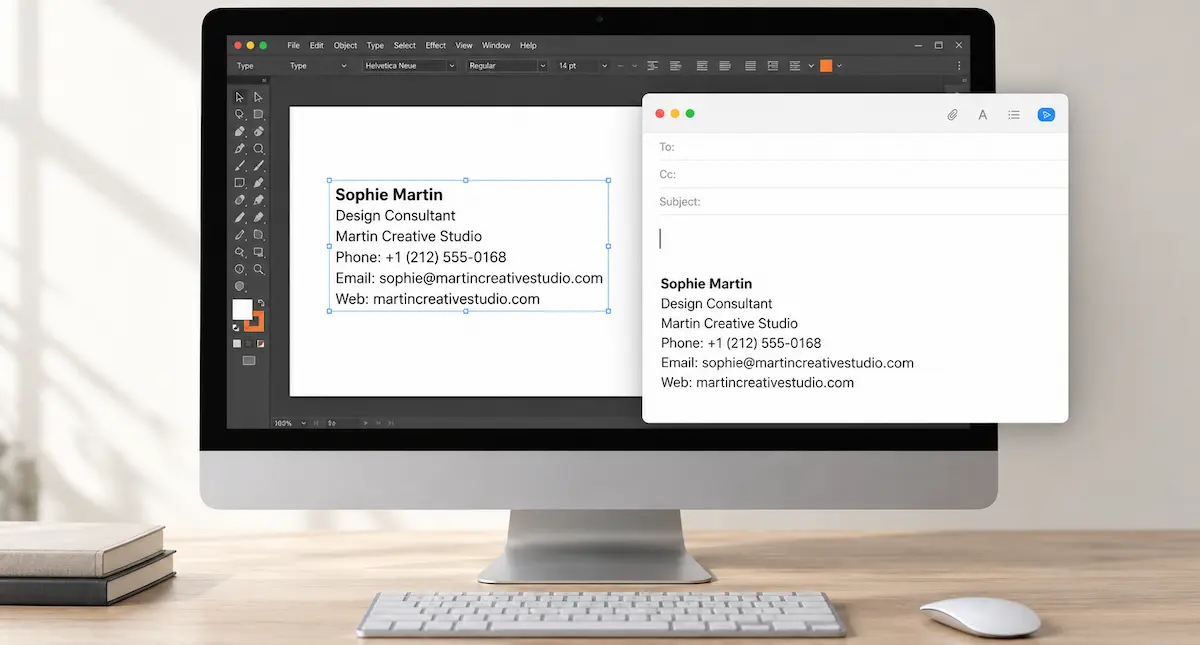
An email signature can look finished in Adobe Illustrator and still need work before it belongs in an email. The layout is only part of the job. Contact details need to remain readable, links need to work, and the signature needs to survive being sent through a mail client.
An Illustrator email signature is best approached in two stages: design the layout, then prepare and test the version that will appear in messages. Exporting the whole design as a PNG or JPG produces an image of the signature. It does not give the recipient separate text links for the phone number, email address, and website.
Start with a layout that works in an email
To create an email signature in Illustrator, begin with a compact layout rather than a miniature business card. Email already contains the conversation; the signature only needs to identify the sender and provide useful contact details.
Set up the document in RGB with pixel units. Keep the contact information in editable text objects while working on the design. Give the name slightly more emphasis, then arrange the role, company, phone number, email address, and one web link in a clear reading order.
A simple layout could look like this:
Sophie Martin
Design Consultant
Martin Creative Studio
Phone: +1 (212) 555-0168
Email: sophie@martincreativestudio.com
Web: martincreativestudio.com
There is little benefit in adding elements that make those details harder to find. Decorative type, large gaps, and elaborate backgrounds can look attractive on the artboard but become awkward at the size of an email signature.
Use a common font that will also be available when the signature is built as HTML. A custom font used in Illustrator will not automatically become available to everyone receiving the email.
Email signature size in Illustrator
The email signature size in Illustrator should reflect how the signature will appear in a message, rather than how large it looks on the design canvas.
For a simple text layout, an artboard around 400 pixels wide is a reasonable starting point. This is a working recommendation, not a required standard. Let the content determine the height, and check long email addresses and URLs before settling on the width.
View the design at its intended display size. If the text is difficult to read, enlarging the exported image will not solve the underlying layout problem. Increase the text size or simplify the arrangement.
Also distinguish between the dimensions of the exported file and the dimensions at which it appears in the email. A larger image displayed at a smaller size can improve sharpness, but it still leaves the contact information inside a picture. Questions about blurred text after resizing are a recurring issue in Adobe’s own community discussions.
For an HTML signature, the final size depends on the text, font, spacing, and layout rules. The Illustrator artboard is a design reference, not a guarantee of how the signature will render in a mail client.
What happens when the signature is exported as an image?
A PNG or JPG preserves the appearance of the artwork, including its typography and spacing. But the recipient cannot select the email address or copy the phone number as text from that image.
A link added around the whole image gives it one destination. That does not make the phone number, email address, and website independently clickable. Separate contact links require an HTML structure around the relevant text or elements.
If the goal is a professional signature with usable contact details, keep those details as text in the final version. This also makes future changes easier: updating a phone number should not require editing and exporting the entire graphic again.
Can Illustrator export an HTML email signature?
Yes, Illustrator has web export features, so it would be inaccurate to say that it cannot produce HTML.
Adobe documents slices that can export as images, contain HTML text, or convert Illustrator text objects into HTML text with basic formatting. Image slices can also have a destination URL. These features provide a route from artwork to a web layout.
However, an HTML file exported from a design tool still needs to be reviewed before it is used as an email signature. It can contain image slices, references to local files, or a layout that works in a browser but needs adjustment in email.
For anyone trying to create an HTML email signature in Illustrator, the important question is what the export actually contains. Does it preserve the contact details as text? Are the links assigned to the correct elements? Does the signature depend on images stored only on the designer’s computer?
An export option alone does not answer those questions.
Turn the layout into a usable HTML signature
For a compact text signature, rebuilding the layout in HTML is often more straightforward than maintaining an export assembled from slices.
Keep the structure simple and format the text directly. Assign a mailto: link to the email address, a tel: link to the phone number, and the full destination URL to the website or booking link.
The HTML version does not need to reproduce every detail of the Illustrator artwork. Small adjustments to spacing or typography are worthwhile if they make the signature easier to read and use in email.
This is where the Illustrator workflow adds another round of work. The layout is already designed, but rebuilding it means setting up the spacing, text styles, and links again in HTML. For a simple signature, that can take more effort than the original design.
If an exported layout includes images, check how those files are referenced. A path to an image on a local computer will not make that image available to recipients.
The finished HTML email signature from Illustrator should be assessed as part of a message, not only as a standalone page in a browser.
Test the signature in Gmail and Outlook
Add the signature using the appropriate method for the mail client, then send a test message. Opening the HTML file in a browser is useful for an initial check, but it does not replace testing an actual email.
Check the received message on desktop and mobile. Look for unexpected line breaks, excessive spacing, or text that has become too small. Test the phone number, email address, and final link.
If the signature will be used in both Gmail and Outlook, check it in both. Also send a reply to see whether the signature remains readable within an email thread.
Make any corrections in the source version, then repeat the test. This is especially useful when preparing signatures for several employees, since longer names and addresses can expose layout problems that the first example did not show.
For a team, the work extends beyond replacing names. A longer job title or email address can change the layout, so each employee’s version needs a check.
Create a professional signature without Illustrator
Illustrator is useful when a visual layout needs to be planned. For a straightforward text signature, that design stage adds work that a dedicated generator can handle directly.
EmailSignatures.xyz creates professional HTML signatures from the sender’s details, with clickable contact links and no need to draw a layout or rebuild it in code. The final web link can lead to a website, portfolio, or booking page.
If the goal is a clean signature for everyday correspondence, create your email signature and download the HTML version for installation in the email client.