How to Create a Professional Email Signature in 2026: A Complete Guide
Most professionals spend hours perfecting their resume and LinkedIn profile, but overlook one of their most frequent touchpoints: their email signature. Dozens, maybe hundreds of emails go out each week, and every single one carries a signature. Yet most people create them hastily, copying outdated templates or guessing at what should be included.
In 2026, learning how to create email signature that’s both professional and technically sound isn’t optional—it’s essential. A poorly constructed signature can land emails in spam, break on mobile devices, or simply fail to convey credibility. This guide walks through every step of creating a signature that works across all platforms, passes spam filters, and actually gets read.
Whether building a first professional signature or updating an existing one, this tutorial covers the technical requirements, design principles, and implementation steps that separate effective signatures from amateur ones.
For those who want to skip the technical complexity and get a working signature immediately, professional signature generators handle all the technical details automatically—but understanding the principles behind effective signatures helps make informed decisions about what works and why.
Why Your Email Signature Matters
Email signatures are often the first—and sometimes only—professional touchpoint with a recipient. Before reading the message, the eye catches the footer. In that split second, an impression forms about professionalism, attention to detail, and technical competence.
Research from email deliverability platforms shows that emails with properly formatted signatures have 23% better engagement rates than those without. More importantly, poorly constructed signatures can actively harm communication. Complex signatures with multiple images increase spam scores by 40%, meaning carefully crafted messages might never reach the inbox.
In 2026, the technical stakes are higher than ever. Email providers have tightened their filtering algorithms in response to AI-generated spam. Gmail’s filters, updated throughout 2025, now specifically evaluate signature complexity as a trust signal. Microsoft Outlook flags emails with high image-to-text ratios. Apple Mail’s privacy features block external images by default on iOS devices.
When creating a professional email signature that meets current technical standards, the goal extends beyond looking professional—it’s ensuring emails actually get delivered and read.
Essential Components: What to Include
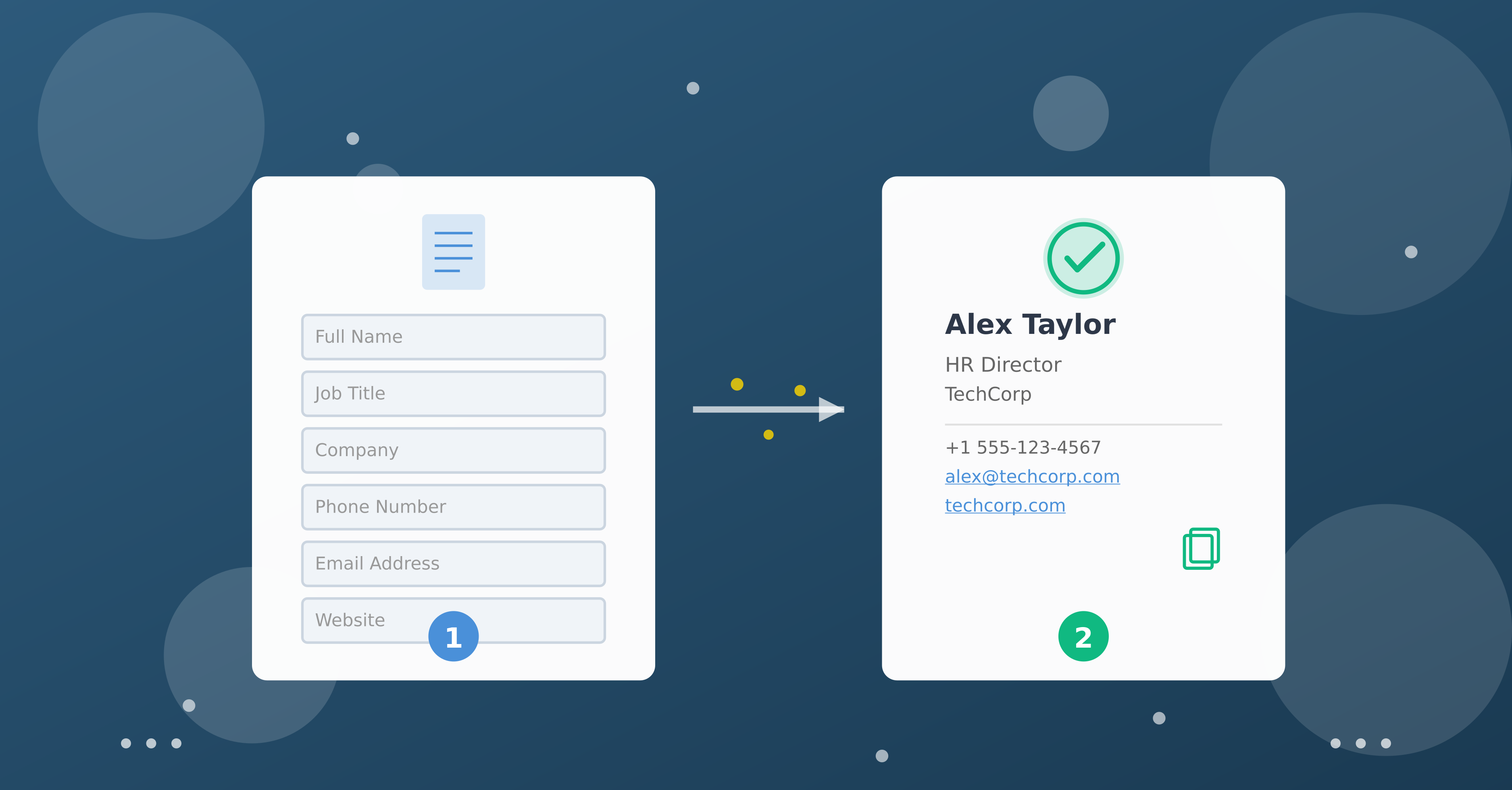
Before diving into the creation process, it’s important to establish what belongs in a professional signature. Testing thousands of business emails reveals six essential components that consistently perform:
1. Full Name
Names should appear exactly as they do on LinkedIn profiles and business cards. This consistency helps recipients find contacts across platforms. Nicknames should be avoided unless that’s the established professional identity.
2. Job Title
Titles provide immediate context about role and authority. Being specific matters: “Senior Marketing Manager” is more meaningful than “Marketing Professional.” For those wearing multiple hats, choose the title most relevant to primary correspondence.
3. Company Name
Include the organization’s official name. This is particularly important for agency workers, consultants, or anyone who might be emailing people unfamiliar with their company.
4. Phone Number
List one direct number—not an office main line, not multiple numbers for different purposes. Decision paralysis is real. Make it easy for someone to call by providing exactly one option.
5. Email Address
Yes, recipients already have it, but displaying it serves a crucial purpose: forwarding. Strong contacts often loop in colleagues, mentors, or partners. A clearly visible email address makes this seamless.
6. Website Link
One clean, text-based link to a company website or professional portfolio. This allows curious recipients to research without leaving their inbox.
What NOT to Include:
This email signature guide emphasizes what to leave out as much as what to include. Skip photos (they trigger spam filters and break in Dark Mode), avoid social media icons (each is a separate external request that can fail), and resist the urge to add inspirational quotes or legal disclaimers unless absolutely required by industry regulations.
The goal is clarity and deliverability, not decoration.
How to Create Email Signature: Step-by-Step Tutorial
Now for the actual creation process. These steps to create email signature work whether building manually or using a generator tool.
Step 1: Determine Your Format
There are two primary options: plain text or HTML.
Plain text signatures are the safest choice for maximum compatibility. They work everywhere, never break, and have zero deliverability issues. The downside? Limited formatting—no colors, fonts, or structure beyond basic line breaks.
HTML signatures allow formatting like font choices, colors, and structured layouts. They look more polished but carry technical risks if not coded properly. In 2026, if going with HTML, it must be clean, minimal code with no external resources.
For most professionals, a simple HTML signature with basic formatting strikes the right balance. Professional presentation comes without the technical baggage of complex designs.
Step 2: Gather Your Information
Before building, collect all six essential components. Write them out in a document:
- Full name (exactly as it should appear)
- Official job title
- Company name
- One direct phone number (formatted consistently: +1-555-123-4567 or (555) 123-4567)
- Email address
- Website URL (without http:// prefix—just the clean domain)
Having this prepared prevents the “fill-in-as-you-go” approach that leads to inconsistencies.
Step 3: Choose Structure and Hierarchy
Signatures need visual hierarchy—not everything can have equal weight. A typical effective structure:
[Full Name] — largest/bold
[Job Title] — regular weight
[Company Name] — regular weight
[Phone] — smaller
[Email] — smaller
[Website] — smaller
The name draws the eye first, the title provides context, and contact methods are readily accessible but don’t dominate. This structure works across all email clients and remains readable even when formatting breaks.
Step 4: Build Your Signature
This is where making an email signature becomes either simple or complicated, depending on the approach taken.
Option A: Manual Creation
For those comfortable with HTML, hand-coding a basic signature is possible. Use a simple table structure (yes, tables—email clients are stuck in 2010 for HTML support), web-safe fonts (Arial, Georgia, Verdana), and inline CSS (external stylesheets don’t work in email).
The challenge: email HTML is notoriously finicky. What looks perfect in Chrome might break in Outlook. Mobile rendering is unpredictable. Dark Mode can turn carefully chosen colors into an unreadable mess.
Option B: Use a Generator
This is where specialized tools become invaluable. Instead of wrestling with email HTML quirks, fill in the six fields, choose from pre-tested layouts, and get clean code that’s been verified across email clients.
Generators handle the technical details: proper encoding, mobile responsiveness, Dark Mode compatibility, and spam-filter-friendly code structure. Professional results come in under five minutes instead of spending hours debugging why signatures break in Gmail but work in Outlook.
The output is clean HTML that can be copied directly into email client signature settings. No technical knowledge required.
Step 5: Test and Implement
If Using a Generator:
The advantage of using a professional email signature generator is that extensive testing has already been done. Templates are pre-verified across major email clients (Gmail, Outlook, Apple Mail) and devices (desktop, mobile, tablet). Dark Mode compatibility is built in, and mobile responsiveness is guaranteed.
The only testing needed is within the specific email client being used. After pasting the signature into email settings, send one test email to verify that the email client hasn’t added unwanted formatting or spacing. This takes 2-3 minutes rather than the extensive testing required for manual signatures. Some email clients have settings that can affect signature display—these are easy to adjust if needed.
If Building Manually:
Manual signatures require comprehensive testing before deployment. Send test emails to:
- Personal Gmail account
- Work email (if different)
- Outlook.com account
- iCloud/Apple Mail account
Check each email on:
- Desktop email client
- Mobile phone (both standard and Dark Mode)
- Tablet if applicable
Look for:
- Broken formatting or line breaks
- Text that’s too small to read on mobile
- Colors that disappear in Dark Mode
- Any “missing image” icons
- Awkward spacing or alignment issues
If something breaks, simplify. Remove formatting until there’s a version that works everywhere. A simple signature that displays correctly is infinitely better than a complex one that breaks on half of recipients’ devices.
This testing process can take 30-60 minutes depending on how many issues need troubleshooting.
Step 6: Install in Your Email Client
Once testing is complete (or skipped if using a generator), install the signature. The process varies by platform:
Gmail: Settings → General → Signature → Paste HTML
Outlook Desktop: File → Options → Mail → Signatures → Paste
Apple Mail: Preferences → Signatures → Create new → Paste
After implementation, monitor email metrics over the next few weeks. Consistent response rates and no delivery issues indicate the signature is working properly.
Technical Best Practices
Understanding the technical side of how to make email signature properly requires knowing what email clients actually support.
Safe Fonts and Encoding
Email clients support a limited set of “web-safe” fonts. Stick to these:
- Arial — clean, professional, universally supported
- Georgia — slightly more distinctive, good for creative fields
- Verdana — excellent readability, especially on screens
- Tahoma — similar to Verdana, good mobile rendering
Avoid custom fonts, Google Fonts, or anything requiring external loading. They won’t work in most email clients and will fall back to defaults anyway.
Always use UTF-8 encoding for HTML. This ensures special characters (accents, symbols) display correctly across all platforms.
File Size Optimization
Signatures should be under 5KB total. Most text-based signatures are naturally under 1KB, which is perfect. If approaching 5KB, there are likely embedded images or excessive styling—both of which should be removed.
Email providers use file size as one factor in spam detection. A bloated signature adds unnecessary weight to every email sent. Keep it lean.
Common Mistakes to Avoid
Even experienced professionals make these errors when creating signatures. Here’s what to watch for in this email signature tutorial:
Mistake 1: Visual Overload
The biggest mistake is treating signatures like marketing brochures. Multiple colors, different font sizes, bold and italic everywhere, decorative elements—all of this reduces professionalism rather than enhancing it.
Signatures aren’t advertisements. They’re contact information. The more visual complexity added, the less trustworthy they appear. Worse, visual complexity directly correlates with spam filter triggers.
Mistake 2: External Image Dependencies
Every external image in a signature is a point of failure. Corporate firewalls block them. Privacy features hide them. Email clients cache them inconsistently.
When headshots don’t load, recipients see broken image icons—an immediate signal of untrustworthiness. When company logos fail to display, brand recognition is lost without gaining anything in return.
The solution is simple: no images. If logos are absolutely required, embed them as small data URIs (base64 encoded), but understand this adds file size and complexity. Better to skip it entirely.
Mistake 3: Information Overload
Signatures with three phone numbers, two email addresses, five social media links, a booking calendar, and a promotional banner are common but counterproductive. This isn’t helpful—it’s overwhelming.
Every additional element reduces the likelihood that someone will use any element. Provide one clear path to contact. If alternative methods are needed, people will ask.
Mistake 4: Mobile Blindness
Over 60% of emails are opened on mobile devices first. Yet many signatures are designed exclusively for desktop viewing, with tiny text, wide layouts, or touch-unfriendly click targets.
Test signatures on actual phones before deploying them. Can the phone number be easily tapped to call? Is text readable without zooming? Does the layout adapt to a narrow screen? If not, simplify.
Mistake 5: Set-It-And-Forget-It
Signatures aren’t static. Job titles change. Phone numbers update. Companies rebrand. Yet people often use the same signature for years without updates.
Review signatures quarterly. Verify all contact information is current, test that links still work, and check that titles reflect current roles. This small maintenance prevents embarrassing situations where old positions are still listed months after changing roles.
Real-World Examples
Let’s examine two effective signature formats from different professional contexts. These examples demonstrate how to apply the principles covered:
Example 1: Corporate Professional Format
Sarah Chen
Senior Technical Recruiter
TechCorp Solutions
(415) 555-0123
sarah.chen@techcorp.com
techcorp.com
Why it works: This format uses clean hierarchy with the name prominently displayed at the top. The title immediately establishes the professional role, which is critical for recruiting outreach. Contact information is presented in a logical vertical structure—each element on its own line for maximum readability across all devices. The company website provides a research path for interested candidates without cluttering the signature. Total character count is under 150, making it ultra-lightweight for deliverability.
This format is particularly effective for:
- Corporate environments where formal structure is valued
- Roles requiring immediate credibility (recruiting, sales, executive positions)
- Email clients that handle vertical spacing well
- Recipients who primarily read emails on mobile devices
Example 2: Consultant Inline Format
Marcus Rodriguez | IT consultant at Transformation GmbH
+1-555-987-6543
marcus@transformation.com
transformation.com
Why it works: This format combines name and professional context into a single line, which works well for independent consultants or specialists who need to communicate their niche quickly. The descriptor “IT consultant at [Company]” immediately clarifies both the professional capacity and organizational affiliation. Contact information follows in a clear vertical structure, maintaining readability while keeping the overall signature compact.
This format is particularly effective for:
- Independent consultants or freelancers
- Specialists who need to communicate their expertise area
- International correspondence where company affiliation matters
- Situations where brevity is valued but context is still required
Key Commonalities:
Both examples share critical success factors:
- Simplicity: No visual clutter, photos, icons, or colors
- Clarity: Information hierarchy is immediately apparent
- Completeness: All six essential components are present
- Technical soundness: Pure text-focused HTML format ensures universal compatibility
- Mobile-friendly: Vertical structure adapts well to narrow screens
- Lightweight: Minimal character count ensures fast loading and low spam scores
Notice what’s absent from both examples: promotional taglines, social media icons, inspirational quotes, or legal disclaimers. The focus remains on providing clear contact information in the most technically reliable format possible.
Using a Signature Generator: Start Guide
While manual signature creation is possible following this email signature tutorial, using a purpose-built tool saves significant time and eliminates technical guesswork.
Professional email signature generators are designed specifically to solve the problems discussed throughout this guide. Here’s why they’re the faster, more reliable option:
Automated Best Practices
Generators enforce technical requirements automatically. It’s impossible to accidentally create signatures that are too large, use unsupported fonts, or include elements that trigger spam filters. The tool prevents these mistakes by design.
Cross-Platform Testing
Every template has been tested across major email clients and devices. What appears in the preview is what recipients will see—no surprises at deployment.
Clean Code Output
The HTML code generated is minimal, standards-compliant, and specifically optimized for email clients. This isn’t generic HTML that might work; it’s email-specific code that definitely works.
How to Use It (5-Minute Process):
-
Fill in the six fields — Name, title, company, phone, email, website. Forms validate as you type to ensure proper formatting.
-
Choose a layout — Select from pre-tested templates that match professional style and technical requirements.
-
Preview the signature — See exactly how the signature will look before implementing it.
-
Copy the code — Click “Copy HTML” to get clean signature code. Instructions for specific email clients appear automatically.
-
Paste into email client — Follow the simple platform-specific instructions to install the new signature.
The entire process takes approximately five minutes from start to finish. Compare that to spending hours researching email HTML quirks, debugging why signatures break in Outlook, or troubleshooting Dark Mode issues.
For professionals who value their time, using the right tool for the job isn’t just convenient—it’s strategic.
The Bottom Line
Learning how to create email signature properly is a one-time investment that pays dividends on every email sent. A professional, technically sound signature builds credibility, ensures deliverability, and makes it easy for people to make contact.
The key takeaways from this guide:
- Keep it simple: six essential components, no decoration
- Prioritize technical correctness over visual flair
- Test thoroughly if building manually, or use pre-tested templates
- Avoid images, external resources, and complexity
- Review and update quarterly
Most importantly, understand that signatures aren’t about impressing people with design—they’re about communicating clearly and ensuring emails actually reach their destination.
The choice between spending hours learning email HTML quirks or spending five minutes using a tool designed specifically for this purpose is straightforward. Both approaches can work, but one respects time while delivering professional results.
Ready to create professional email signature that actually works? Create your signature now—no technical knowledge required, no trial and error, just clean, professional results that work everywhere.