How to Add Signature in Gmail: Complete Setup Guide for 2026
Professional email communication requires consistency, yet most Gmail users overlook one critical element. Dozens of messages go out weekly without proper sign-offs. The reason? People either never discovered where the configuration lives, or they attempted setup once, hit a confusing screen, and abandoned the effort.
Configuring your gmail signature requires approximately five minutes when the navigation path is clear. This tutorial walks through every necessary action, shows what information to input, and highlights the errors that typically derail first attempts.
Haven’t built your email footer yet? Our comprehensive guide on how to create professional email signature explains component selection and formatting standards for professional presentation.
Why Bother With a Gmail Email Footer?
Gmail commands the email landscape—1.8 billion active users worldwide. This dominance establishes recipient expectations around professional communication norms, and proper sign-offs fall directly within those standards.
A well-configured gmail email signature setup serves practical purposes beyond aesthetic appeal. Recipients gain immediate access to multiple contact channels: phone, email, web presence. No thread excavation or LinkedIn detective work required when someone needs to reach you.
The platform delivers one particularly convenient benefit: configure your footer once through desktop interface, and functionality extends automatically to mobile devices. Desktop configuration eliminates redundant mobile setup work (though simplified mobile variants remain available as options).
Gmail Signature Setup on Desktop
Already have your email footer prepared? Professional generators output Gmail-compatible code within five minutes—then simply execute these installation steps.
Desktop serves as your primary configuration environment. Complete setup here once, and you’re operational everywhere.
Step 1: Access Gmail Settings
Launch Gmail through any web browser. In the interface’s top-right corner, you’ll spot a gear or cog symbol. Selecting this icon reveals a dropdown menu. Within that menu, locate and select “See all settings” to reach the full configuration panel. This action opens the comprehensive settings interface where email footer options reside.
Step 2: Navigate to the General Tab
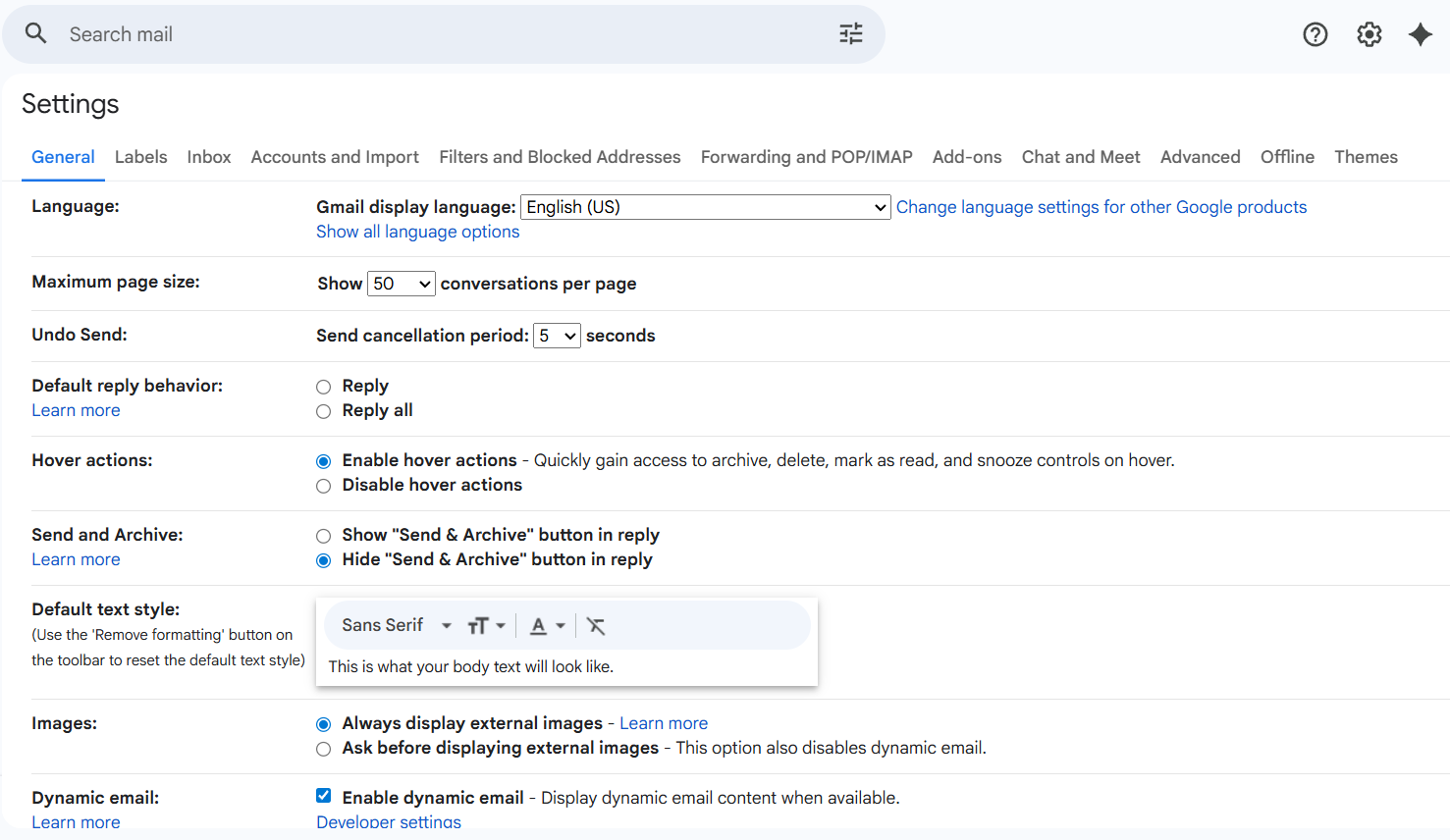
The configuration panel defaults to displaying the “General” tab upon opening. If you’re viewing a different tab, select “General” from the horizontal menu at the panel’s top. This tab houses most standard Gmail configuration choices, including email footer controls.
Step 3: Locate the Signature Section
Scroll downward through the General settings interface until you encounter the section labeled “Signature.” This area displays any currently configured footers and provides creation options for new ones. Accounts without existing configurations show a prompt encouraging first-time setup.
Step 4: Create a New Signature
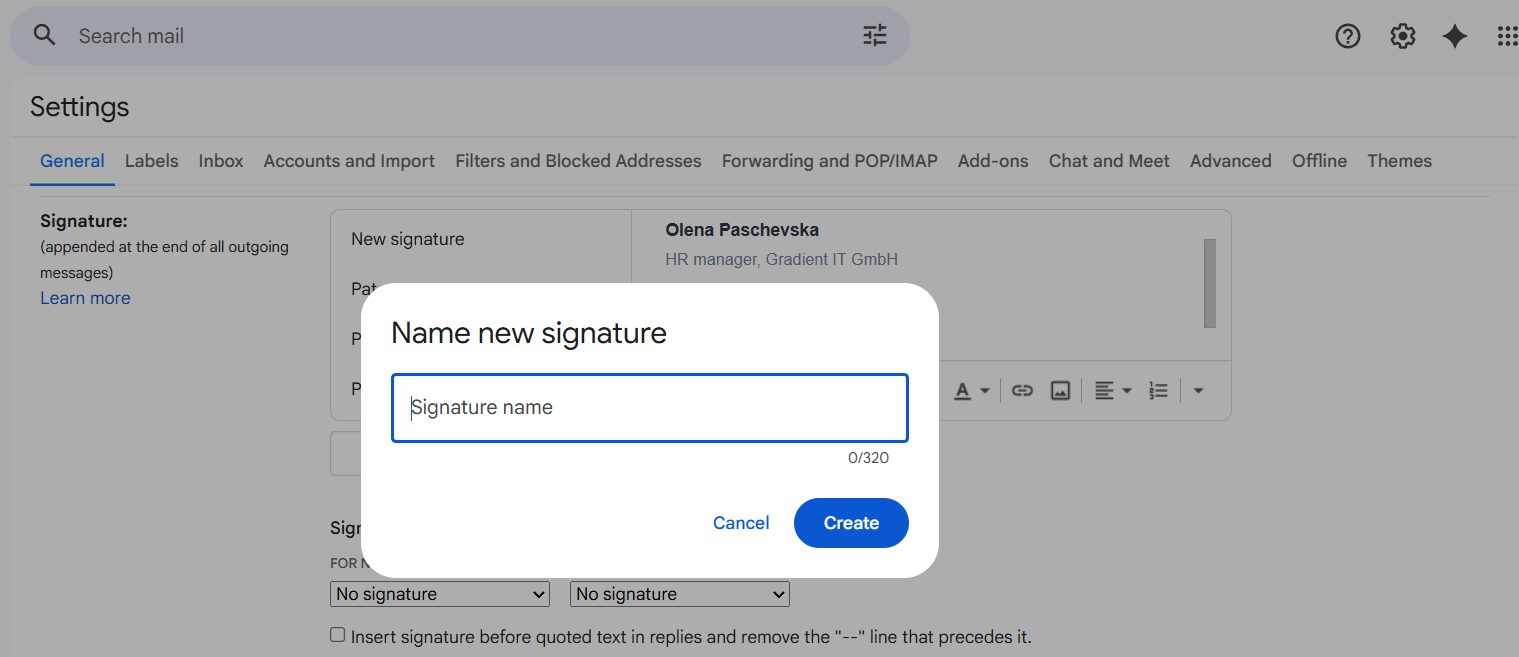
Within this section, select the button labeled “Create new.” A dialog window appears requesting a descriptive name for your footer. Choose something that clearly identifies its intended purpose—practical examples include “Work,” “Professional,” “Sales,” or simply your name if you’re only maintaining one version.
After inputting the name, confirm by selecting “Create.” The editor panel becomes available, awaiting your content input.
Step 5: Add Signature Content
This stage involves adding your actual footer content. Two implementation approaches exist:
Method A: Direct typing approach
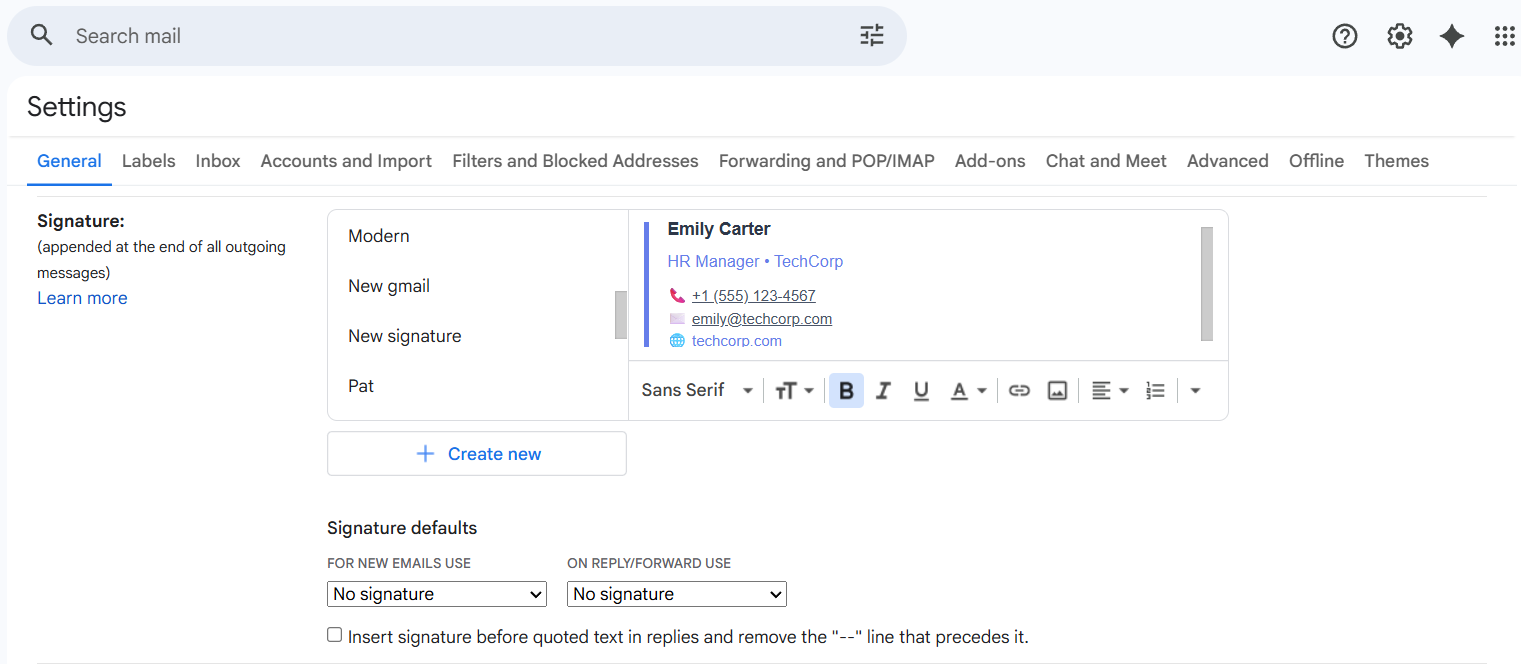
Utilize the formatting toolbar positioned above the text input area. This toolbar enables text formatting, bold or italic styling application, link insertion, and font size adjustments. The toolbar offers fundamental formatting capabilities appropriate for straightforward text footers.
Method B: HTML paste approach
For content generated using a gmail signature tutorial or professional generator tool, paste the HTML code directly into the editor area. Gmail recognizes HTML formatting and renders it appropriately. To paste without introducing additional formatting conflicts, deploy keyboard shortcuts (Ctrl+Shift+V on Windows systems, Cmd+Shift+V on Mac systems) for clean paste operations.
Input your footer content: name, professional title, company affiliation, phone number, email address, and website link. Maintain minimal formatting—Gmail’s editor operates with intentional limitations, and complex formatting frequently breaks during email transmission.
Step 6: Configure Signature Defaults
After content addition, scroll downward to locate the “Signature defaults” subsection positioned below the editor. This area governs which footer appears automatically in new messages and reply scenarios.
For new emails: From the dropdown menu, select your desired option. This selection determines what appears automatically when composing fresh messages. If you prefer manual control rather than automatic insertion for new emails, select “No signature.”
For replies and forwards: Determine whether your footer should appear in replies and forwarded messages. Many professionals select “No signature” for this setting to maintain cleaner reply thread presentation, while others prioritize consistency across all correspondence types.
Step 7: Save Changes
Navigate to the settings page bottom and select the button labeled “Save Changes.” This action is critical—the system doesn’t preserve settings automatically. Without executing this save action, all configuration work vanishes upon navigating away from the settings interface.
Step 8: Test the Signature
Following the save operation, compose a fresh email to verify your footer displays correctly. Dispatch a test message to a personal email account, then examine its appearance across both desktop and mobile viewing environments. This verification phase catches formatting problems before messages reach actual contacts.
What About Mobile?
Excellent news: your desktop configuration functions automatically within the Gmail mobile application. Compose from your smartphone—the contact information appears without requiring additional configuration steps.
Optional: Mobile-Only Version
Prefer abbreviated content specifically for mobile contexts? Gmail accommodates this through create signature gmail mobile version functionality in the app settings.
Launch the Gmail app → access the menu (three horizontal lines) → navigate to gmail signature settings → choose your account → locate “Mobile Signature” option.
Input simplified content here. Critical limitation: this field accepts exclusively plain text format. No formatting capabilities, no HTML support. Structure it as straightforward text:
John Smith
Senior Designer
Acme Corporation
(555) 123-4567
john@company.com
acme.com
Save by navigating backward. Mobile-sent messages now display this condensed version rather than your desktop footer.
Remember: mobile-specific configuration remains entirely optional. Without it, your desktop footer performs excellently on mobile devices.
How to Change Gmail Signature
When contact information evolves—new professional title, updated phone number, different company affiliation—updating your email footer becomes necessary. Rather than editing existing content (which occasionally introduces formatting complications), the cleanest approach involves creating a fresh version and removing the outdated one.
To change gmail signature content: execute Steps 1-7 outlined above to generate a new footer containing updated information. Assign it a new name or reuse the previous name (Gmail permits duplicate naming). Then within the defaults subsection, designate your new version as the default option. Finally, remove the outdated footer by selecting the trash icon positioned next to its name.
This approach ensures your formatting remains clean and your footer functions reliably across all device types.
Multiple Email Footers
Require different versions for varied situations? Generate additional ones by selecting “Create new” again within the footer section.
Construct your second version. Assign it a distinctive name (“Sales,” “Internal,” whatever clarifies its purpose).
To alternate between versions when composing individual messages, access the three-dot menu and choose “Use a different signature.”
Common Gmail Signature Issues and Solutions
Despite careful configuration, footer-related complications occasionally surface. Here are the most frequent problems alongside their resolutions.
Issue 1: Sign-Off Doesn’t Appear in Sent Emails
Root cause: Your footer isn’t designated as default, or “No signature” is currently selected in the defaults subsection.
Resolution approach: Return to Settings → General → email footer section. Examine the “Signature defaults” area. Verify the correct option is chosen in the dropdown menu for “For new emails.” Preserve changes and verify with a fresh email test.
Issue 2: Formatting Breaks When Pasting HTML
Root cause: Gmail’s editor occasionally introduces additional formatting during paste operations, or the HTML contains elements Gmail doesn’t recognize.
Resolution approach: Deploy “Paste without formatting” (Ctrl+Shift+V on Windows, Cmd+Shift+V on Mac). This strips extra formatting and pastes raw HTML. If complications persist, the HTML likely contains unsupported elements—footers should employ simple HTML with inline CSS exclusively.
Issue 3: Images Don’t Display or Show as Broken
Root cause: Gmail blocks externally hosted images in email footers for security protocols. Images stored on external servers manifest as broken icons to recipients.
Resolution approach: Eliminate images entirely. External images rarely display correctly, and they elevate spam filter risk. Deploy text-based content exclusively for maximum compatibility. If branding is absolutely required, employ text formatting (colored text, specific fonts) rather than image logos.
Issue 4: Footer Appears Double in Replies
Root cause: Your footer is configured to appear in both “new emails” and “replies/forwards,” and Gmail is simultaneously displaying the footer from the original email thread.
Resolution approach: Within the defaults subsection, consider designating “On reply/forward” to “No signature.” This prevents duplication in email threads while maintaining professional footers for new conversations.
Issue 5: Different Content Appears on Mobile
Root cause: A separate mobile version has been configured in the Gmail mobile application, which supersedes the desktop version when dispatching from mobile devices.
Resolution approach: Launch the Gmail app, navigate to Settings → [Account] → Mobile Signature. Either eliminate the mobile content (leaving it blank activates the desktop version) or update it to mirror your desktop footer. If a separate mobile version is intentional, this isn’t problematic—simply remain aware that two different versions exist.
Issue 6: Position is Wrong in Replies
Root cause: Gmail positions footers above quoted text in replies by default, though this behavior can vary based on configuration.
Resolution approach: This is largely governed by Gmail and cannot be extensively customized. Your footer appears where Gmail determines appropriate based on whether the email is new, a reply, or a forward.
Best Practices for Gmail Email Footers
Embrace simplicity. Gmail’s editor limitations aren’t defects—they’re safeguards preventing over-designed footers that malfunction across email clients. Adhere to one font, minimal styling, zero images.
Test comprehensively. Dispatch test messages to yourself and examine them on desktop, phone, and tablet. What appears flawless on a 27-inch monitor might become unreadable on a 5-inch phone screen. Five minutes of testing prevents weeks of professional embarrassment.
Maintain currency. Establish a calendar reminder every three months to audit your contact information. Professional titles evolve, phone numbers switch, companies rebrand. Your footer should reflect current reality, not six-month-old information that damages credibility.
Eliminate external images. This principle deserves emphasis and explanation. Images hosted on external servers create multiple failure points: corporate firewalls block them, privacy features hide them, email clients cache inconsistently. Even company logos introduce problems—they manifest as broken icons and elevate spam filter risk. Text-based footers function universally and reliably.
Build multiple versions. Create signature gmail versions matching different communication scenarios. Sales outreach might incorporate a booking link. Internal correspondence could adopt a more casual tone. Client-facing footers maintain complete professional details. Construct several versions and alternate based on recipient context.
Consider audience expectations. Different recipients harbor different expectations. Emailing within your company? A simplified footer suffices. Reaching out to new clients? Complete contact details matter significantly. Adjust your default configuration based on your primary correspondence type.
Prioritize mobile experience. Over 60% of emails receive initial opens on mobile devices. Your footer must function on small screens, not exclusively desktop monitors. Maintain reasonable line lengths, ensure fonts remain legible without zooming, make phone numbers tappable.
Maintain platform consistency. Your email footer should mirror your LinkedIn profile, business cards, and website contact information. Inconsistent phone formatting or conflicting professional titles breed confusion and erode professionalism. Preserve identical details across all professional touchpoints.
Why Use a Generator?
Gmail’s integrated editor manages basic text adequately, but producing properly formatted HTML footers manually consumes significant time and demands technical proficiency. Generators resolve this through a streamlined gmail signature tutorial approach.
They output clean HTML that functions reliably in Gmail, eliminating experimental iterations. Benefits include:
- Proper formatting that survives email transmission
- Mobile-responsive layouts that adapt to different screen dimensions
- Gmail-compatible code structure that passes through processing
- Professional organization achievable within five minutes
The workflow: input your information, select a template, copy the generated HTML, paste it into Gmail settings (Step 5 outlined above). Total time investment: five minutes.
Zero HTML knowledge required. No debugging sessions wondering why your editor preview appears perfect but sent emails malfunction in Outlook. Simply professional results that function universally.
Frequently Asked Questions
Can different email addresses connected to Gmail each have unique footers?
Absolutely. If multiple email addresses are linked to your Gmail account, each can maintain its own footer configuration. Navigate to Settings → Accounts → choose specific email address → locate the footer section for that address. Each address preserves independent default settings.
Why doesn’t my footer appear on my iPhone or Android device?
Two common causes warrant investigation: First, verify whether you’ve configured a separate mobile version in the Gmail app. If affirmative, that’s overriding your desktop configuration. Access app Settings → Mobile Signature and either clear it or update accordingly. Second, confirm your desktop defaults are properly configured—selecting “No signature” for new emails prevents display everywhere, including mobile devices.
Do phone numbers and email addresses automatically become clickable?
Gmail automatically converts phone numbers and email addresses into interactive elements within footers. No special formatting or coding required—simply type them in standard format. Mobile device users can tap phone numbers to initiate calls and tap email addresses to compose new messages.
How can I add footers to only selected emails rather than all messages?
Within Settings → defaults subsection, designate “For new emails” to “No signature.” Then when composing specific messages where you want a footer, access the three-dot menu at the compose window bottom and choose “Insert signature.” Select which version to add. This approach enables message-by-message control rather than universal application.
Does Gmail support automatic footer changes on a schedule?
Gmail doesn’t incorporate built-in scheduling functionality for footers. However, you can generate multiple versions (examples: “Summer Hours” and “Regular Hours”) and manually alternate your default when circumstances shift. The switching process requires approximately 30 seconds: Settings → General → defaults subsection → choose different version → Save.
What character limit does Gmail impose on footers?
Gmail permits up to 10,000 characters in the footer field. For practical purposes, this represents essentially unlimited space—typical professional footers consume 200-400 characters. If you’re approaching the limit, your footer is likely excessively lengthy and will frustrate recipients rather than assist them.
Why does footer appearance differ between new emails and replies?
This represents intentional behavior based on your configuration choices. Examine your defaults settings—you’ve likely selected different options for “For new emails” versus “On reply/forward.” Many professionals designate replies to “No signature” to maintain conversation thread cleanliness, while new emails receive the complete footer treatment.
Quick Summary
How to add signature to gmail condenses to:
- Settings → See all settings → General → footer configuration section
- Create new, input your content
- Configure defaults
- Preserve changes
- Verify with a real email
Desktop configuration automatically functions on mobile. Mobile-only versions are optional enhancements, not requirements.
Maintain email footers simple—text exclusively, six essential information pieces, minimal formatting. Update when your information changes. Verify before dispatching to important contacts.
Ready to implement a professional sign-off? Create your signature now—obtain Gmail-compatible code that functions everywhere, then install it using the steps outlined above.