Create an Email Signature with Picture: Templates, Generators, and Better Alternatives
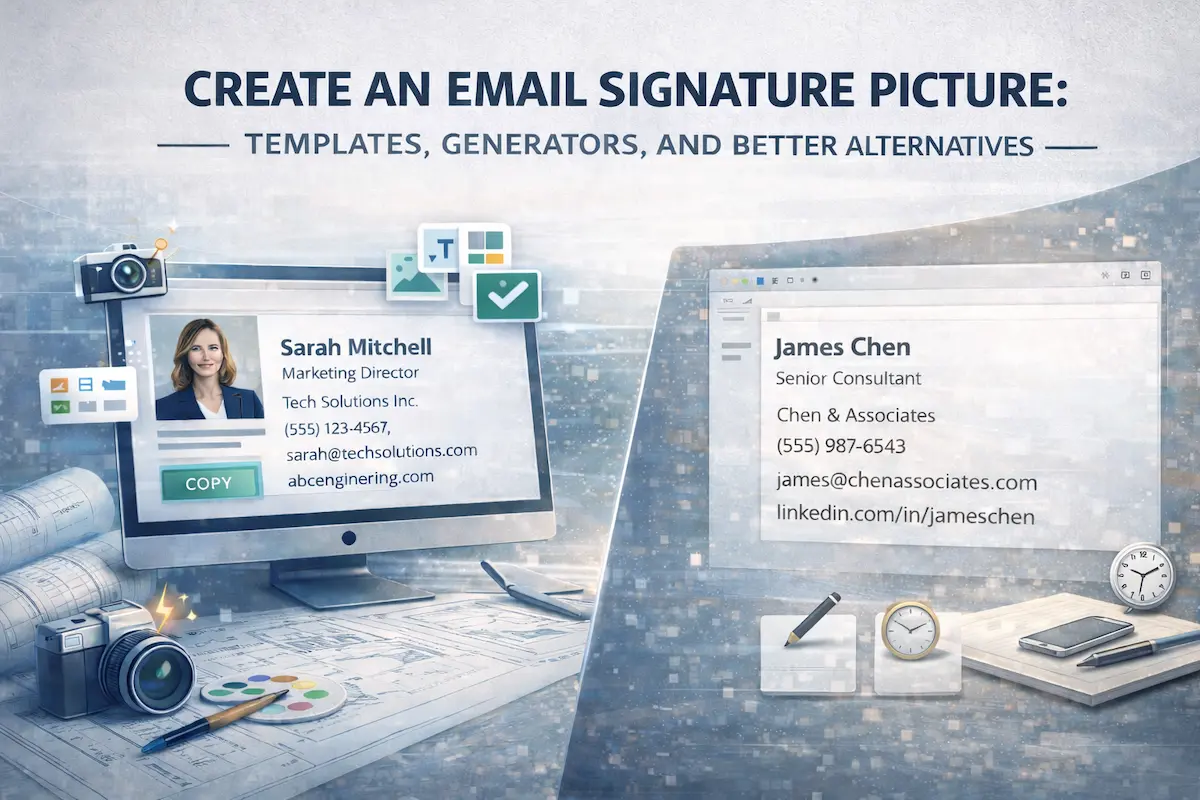
Creating an email signature with a photo may seem like a simple way to make your emails look more personal or visually polished. Many people look for image-based templates or generators expecting a clean, professional result with minimal effort.
However, picture-based signatures often behave differently in real inboxes than they do in previews. What looks professional in a template editor breaks when recipients open the message. Before choosing an image or photo for your signature, it’s important to understand the technical limitations of this approach—and why many professionals eventually abandon image-based signatures in favor of text-only HTML alternatives.
Why People Add a Picture to Email Signatures
Most email signature photo setups are created for understandable reasons.
Adding a headshot makes emails feel more personal. In remote work environments where face-to-face interaction is limited, a professional photo helps recipients put a face to the name. This personal touch can build trust faster than text alone, especially in client-facing roles or sales positions.
Including a company logo reinforces brand identity. Marketing teams and business owners often view email signatures as an extension of their brand presence. Every outgoing message becomes an opportunity to display the company logo, maintain visual consistency, and strengthen brand recognition across client communications.
Visual design helps signatures stand out. In crowded inboxes where recipients process dozens of messages daily, a well-designed signature with visual elements can catch attention more effectively than plain text.
Templates and generators make implementation feel effortless. A photo signature template offers pre-designed layouts where you simply upload an image, place your contact details next to it, and copy the result. The entire process takes minutes. The appeal is obvious: professional appearance with minimal technical skill required.
The problem emerges after the email is sent. What works perfectly in a generator preview often fails in real-world email environments.
How Image-Based Email Signatures Usually Break
A common email signature with picture template follows a predictable layout: profile photo aligned to the left, contact details positioned on the right, and sometimes a logo or banner element placed below. This design mirrors traditional business card layouts and looks clean in isolated previews.
In many corporate and personal inboxes, images are blocked by default as a security measure. Gmail, Outlook, and most enterprise email systems prevent automatic image loading to protect users from tracking pixels and potentially malicious content. What the recipient actually sees is an empty placeholder box where your photo should appear, with text pushed awkwardly out of alignment.
Instead of projecting the professional image you intended, your mail signature image can appear fragmented or misaligned in some inboxes. The spacing no longer makes sense. Text wraps incorrectly. Contact information appears disconnected from context. The signature that looked polished in preview now signals technical incompetence or carelessness.
What Happens in Real Email Threads
Signature email image elements may render correctly in the initial message you send. The real test comes when email conversations develop through replies and forwards.
Email clients handle images inconsistently during thread progression. Outlook strips images from signatures in forwarded messages. Gmail sometimes duplicates signature images when replies nest deeply. Apple Mail maintains images but reformats spacing unpredictably. Mobile email clients apply their own compression and resizing rules that distort carefully designed layouts.
The result compounds with each reply. Your signature grows longer as email threads progress, with broken image placeholders stacking vertically. Text alignment shifts with each client’s rendering rules. Spacing becomes increasingly chaotic. What started as a three-line signature expands into a confusing eight-line block of placeholders and misaligned text.
Recipients receiving forwarded messages see the worst version. By the time your email passes through three or four forwards, your signature has degraded into visual noise that makes the entire message appear unprofessional—regardless of the actual content quality.
Email Signature Picture Generators: What They Solve (and What They Don’t)
An email signature image generator focuses on making the creation process convenient and visually appealing.
These tools provide drag-and-drop interfaces for arranging elements. You upload your photo, enter contact details, adjust colors and fonts, and preview the result instantly. The generator outputs HTML code that you paste into your email settings. The entire workflow takes five minutes and requires no technical knowledge.
What these generators cannot control is recipient behavior after sending. Email client rendering happens outside the generator’s environment. Blocking policies, security settings, and display preferences all operate on the recipient’s side—completely beyond what any generator can influence or predict.
Image blocking varies by organization. Some companies block all external images by default, while others restrict images from first-time senders. Consumer email services like Gmail offer recipients granular control over image loading. Corporate IT departments enforce policies that override individual preferences entirely.
Resizing happens unpredictably. A 200-pixel square photo that looks perfect on desktop Gmail may render as a 400-pixel rectangle on mobile Outlook. The same image might compress to 100 pixels in Apple Mail’s preview pane. Each email client applies its own image handling rules, and these rules change with software updates.
Alignment issues emerge from client-specific quirks. What renders correctly in Gmail’s web interface breaks in the Gmail mobile app. Outlook desktop handles images differently than Outlook web access. Each email client interprets HTML slightly differently, creating subtle but cumulative rendering problems that generators cannot anticipate or prevent.
If your goal is reliability rather than visual design, a text-only HTML signature avoids most of the rendering issues described above.
Templates with Photos vs Real-World Usage
An email signature template with a photo is designed and tested in controlled, isolated conditions. Real inbox environments are dynamic, unpredictable, and messy.
Emails don’t exist in isolation. They get replied to by recipients using different email clients. They get forwarded to third parties who view them in different environments. They get read on desktop computers, tablets, smartphones, and occasionally even printed. Each context introduces new variables that affect how your signature displays.
Reply chains create compounding problems. When someone replies to your email, their email client processes your signature according to its own rules before appending it to their response. When a third person replies to that thread, another layer of processing occurs. By the fourth or fifth reply, your original signature has passed through multiple email clients, each applying its own modifications.
Device switching changes everything. A recipient might read your initial email on their desktop computer where images load correctly. When they reply from their smartphone later, their mobile email client reprocesses your signature with different rules. The same signature that looked professional in the morning appears broken by afternoon—through no fault of either sender or recipient.
Mixed email client environments are standard in business communication. You might use Gmail. Your recipient might use Outlook. The person they forward your message to might use Apple Mail. Each transition introduces another opportunity for picture on email signature layouts to break, degrade, or display inconsistently.
The Hidden Cost of Image-Based Email Signatures
Beyond immediate layout problems, email signature with image formats introduce long-term friction that accumulates over time.
Slower loading affects user experience. Image files add kilobytes to every email you send. When you exchange dozens of emails daily, those kilobytes multiply into megabytes. Recipients on slow connections or mobile data plans wait longer for messages to load. Email clients must download, process, and render each image separately from text content.
Higher blocking probability affects first impressions. The more images your signature contains, the more likely corporate security policies will flag your messages. Some systems quarantine emails with multiple images pending manual review. Others strip images entirely but mark the message as potentially suspicious.
Maintenance overhead grows over time. When you change jobs, your company logo changes. When you get promoted, your photo needs updating. When your company rebrands, all signature elements require replacement. Each change means regenerating your signature, updating settings across multiple devices, and hoping the new version renders correctly across recipient environments.
Accessibility issues exclude recipients. Screen readers cannot interpret images in email signatures. Visually impaired recipients who rely on assistive technology encounter empty placeholder descriptions or, worse, meaningless alt text that provides no useful information. Your signature becomes a barrier to communication rather than a facilitator.
Inconsistent appearance undermines professionalism. When your signature looks perfect to some recipients but broken to others, you can’t control the impression you make. Different recipients form different judgments about your attention to detail and technical competence—based entirely on how their email client happened to render your signature that day.
A Better Alternative: Text-Only HTML Email Signatures
Text-only HTML signatures are often misunderstood. The term sounds primitive, as if you’re reverting to plain text from 1995. In reality, these signatures use modern HTML to create clean, reliable layouts that solve the problems image-based signatures create.
A well-structured HTML signature doesn’t need images to look professional. HTML provides semantic structure that email clients render consistently. Your name appears distinct from your title through heading tags rather than font size variations. Contact details are organized through proper line breaks rather than table cells. Links format as clickable elements through anchor tags rather than raw URLs.
Clickable functionality works reliably. Phone numbers link directly to dialers on mobile devices. Email addresses open composition windows in the recipient’s default email client. Website URLs navigate to your company site in a single tap. These interactive elements function identically across email platforms because they rely on standard HTML rather than image maps or embedded graphics.
Consistent spacing maintains structure. HTML line breaks render predictably across email clients. Paragraph spacing remains uniform whether the recipient views your message on Outlook desktop, Gmail mobile, or Apple Mail. Text reflows naturally to fit different screen sizes without breaking layout or requiring horizontal scrolling.
Predictable rendering eliminates surprises. Text displays correctly in new messages, replies, forwards, and deeply nested threads. No images to block. No external resources to load. No client-specific quirks to navigate. The signature you send is the signature recipients see—regardless of their email client, device, or security settings.
Because there are no images to block or resize, the signature looks identical in new emails, reply threads, and forwarded messages. Many professionals discover that email signature templates without photos actually deliver more consistent results than image-heavy alternatives that promise visual appeal but deliver technical problems.
What Text-Only HTML Signatures Look Like
Here are examples that work reliably across all email clients:
Example 1: Simple Professional Format
Sarah Mitchell
Marketing Director
Tech Solutions Inc.
(555) 123-4567
sarah@techsolutions.com
techsolutions.com
Example 2: With LinkedIn
James Chen
Senior Consultant
Chen & Associates
(555) 987-6543
james@chenassociates.com
linkedin.com/in/jameschen
Example 3: Compact Format
Maria Garcia | Graphic Designer at Garcia Design Studio
(555) 246-8135
maria@mariagarcia.com
mariagarcia.com
These formats display consistently across Gmail, Outlook, Apple Mail, and mobile devices—without any images to block or break.
If you want to create email signature picture alternatives without the technical complexity, use a text-only HTML signature generator that handles the formatting automatically.
Why Many Professionals Switch to Text-Only HTML
The switch usually happens after experience, not theory. People don’t abandon image-based signatures because someone told them to. They switch because they’ve experienced the problems firsthand.
Consistent rendering matters more than visual flair once you’ve seen your signature break in client emails. In situations where a message is forwarded internally and image placeholders appear instead of a photo, reliability often becomes more important than visual decoration.
Fewer layout issues means fewer distractions from message content. When recipients focus on broken signature images, they’re not focusing on your actual message. When your signature renders cleanly every time, it fades into the background where it belongs—providing necessary contact information without drawing attention to itself.
Better compatibility with major email platforms eliminates platform-specific problems. Gmail users see the same signature as Outlook users. Desktop clients display the same layout as mobile apps. First-time contacts encounter the same professional presentation as long-term clients. Consistency builds trust through repeated, predictable impressions.
Minimal maintenance reduces long-term effort. Update your contact details in one place and paste the new HTML code into your email settings. No images to host, update, or replace. No external resources to maintain. No links that break when file hosting services change their policies. The signature just works, requiring attention only when your actual contact information changes.
A professional look that doesn’t break proves more valuable than a decorative look that fails unpredictably. Once professionals recognize this trade-off, moving away from email signature with photo template designs becomes an obvious choice rather than a sacrifice.
When an Email Signature Picture Might Still Make Sense
There are limited cases where email signature image template formats can work reliably.
Internal company emails operate in controlled environments where IT departments can ensure consistent email client usage, standardize image handling policies, and troubleshoot rendering problems when they occur. If everyone in your organization uses the same email platform with the same settings, image-based signatures can work because the variables are controlled.
Controlled environments with known clients eliminate the uncertainty that plagues external email communication. When you know exactly which email client your recipients use and how their security settings handle images, you can design signatures that work reliably within those constraints. This scenario is rare but possible in closed business ecosystems.
Marketing or promotional emails serve different purposes than daily business correspondence. These messages often include designed graphics, branded imagery, and visual elements by default. Adding a signature with images makes sense in this context because the entire message is already image-heavy, and recipients expect marketing emails to contain visual content rather than plain text.
For everyday professional communication, especially external messages to clients, partners, or prospects, images in signatures tend to cause more issues than they solve. The reliability problems outweigh the aesthetic benefits.
Final Thoughts
If you’re looking to create email signature picture designs, templates and generators can help you get started quickly. These tools make it easy to produce visually appealing signatures that look professional in previews. But it’s worth understanding how image-based signatures actually behave in real recipient inboxes before committing to them for daily use.
The core problem isn’t that images look bad. The problem is that images don’t work reliably. Email clients block them by default. Reply chains corrupt their formatting. Mobile devices render them inconsistently. Forwarded messages strip them entirely. Each technical failure undermines the professional impression you’re trying to create.
For most professionals, a text-only HTML email signature offers a more reliable, accessible, and future-proof alternative to image-based signatures. You sacrifice visual decoration but gain technical reliability. You trade aesthetic flair for consistent presentation. You accept a simpler design in exchange for signatures that actually work across all email platforms, devices, and security configurations.
The choice depends on what matters more: how your signature looks in ideal conditions, or how it actually appears to recipients in real-world email environments.